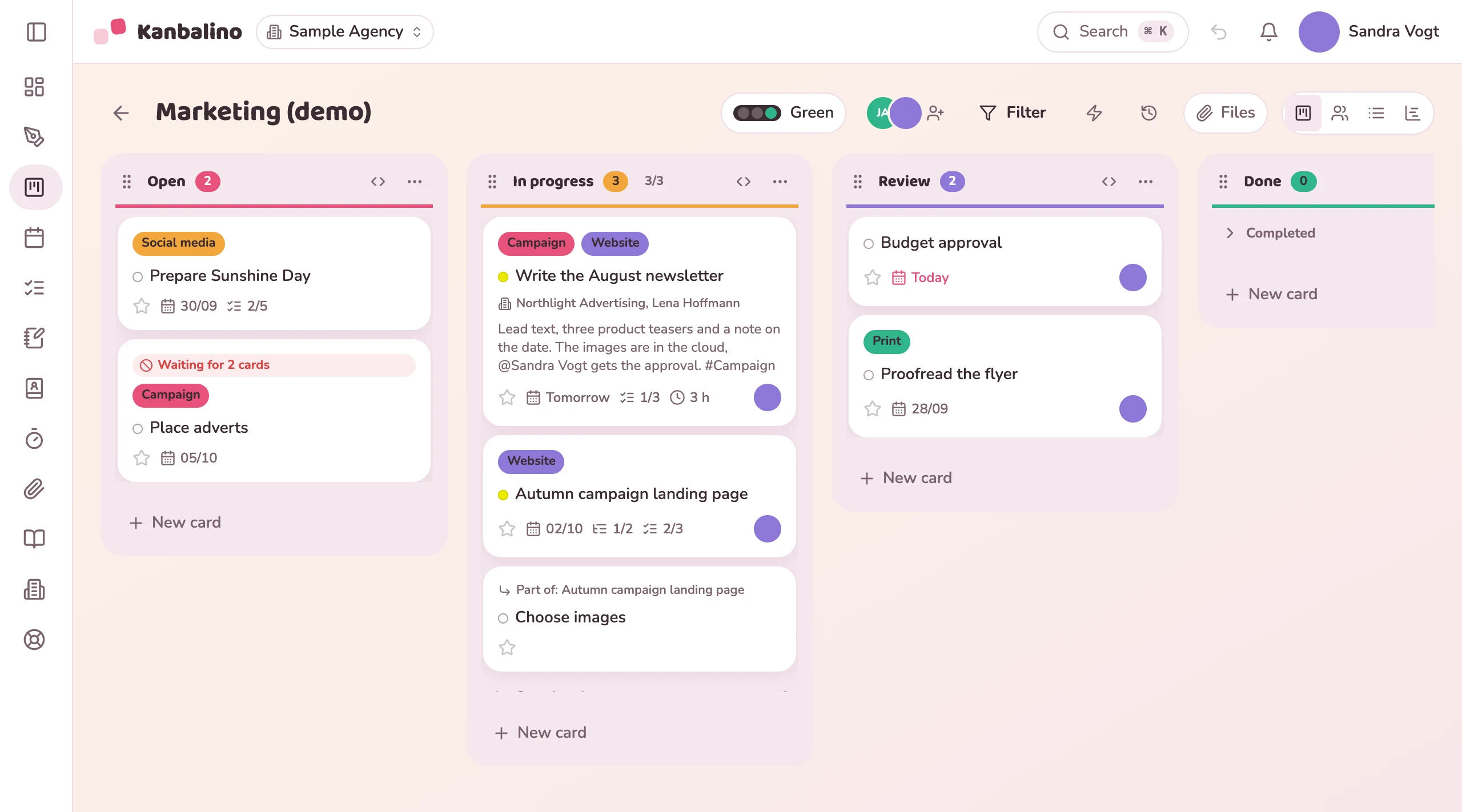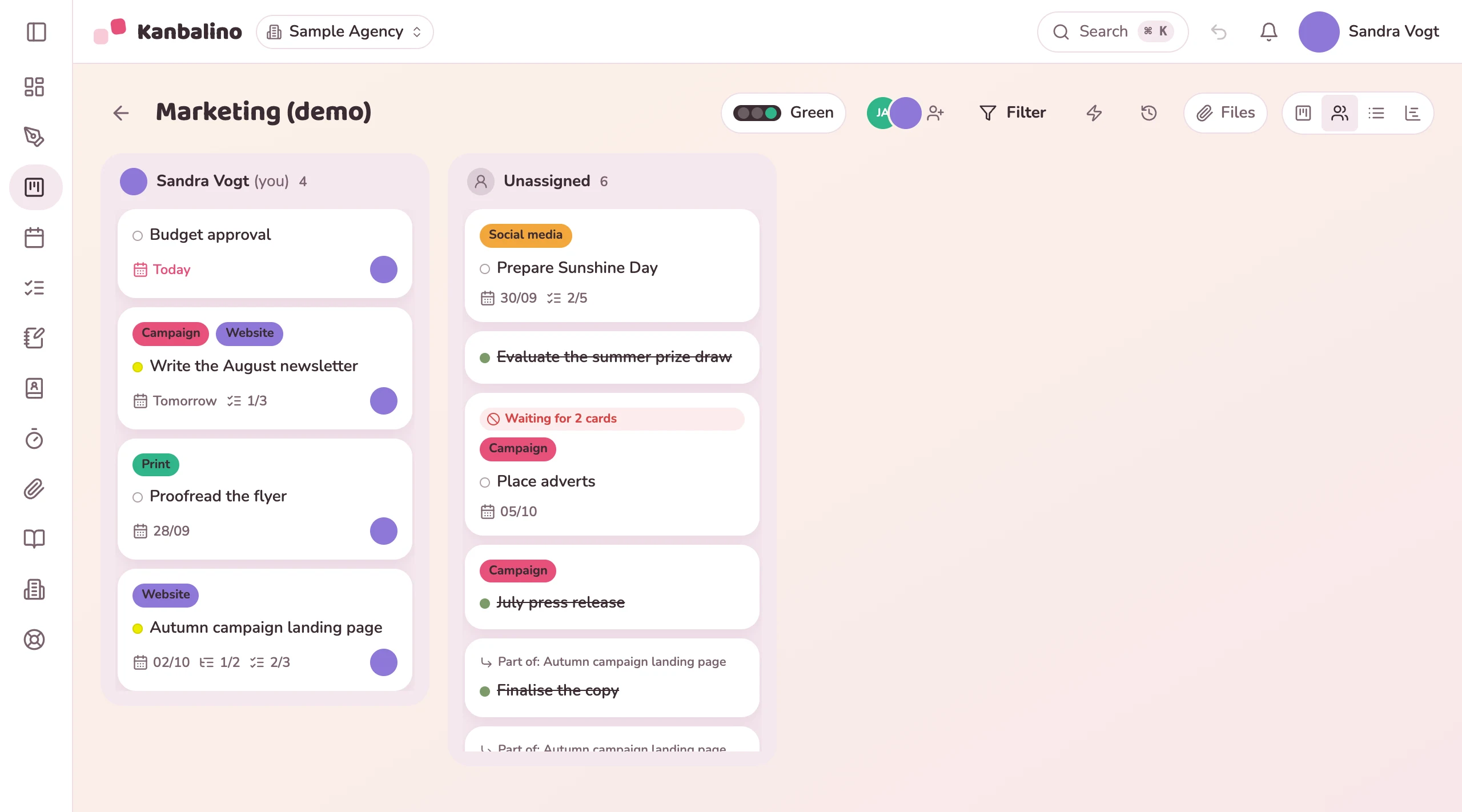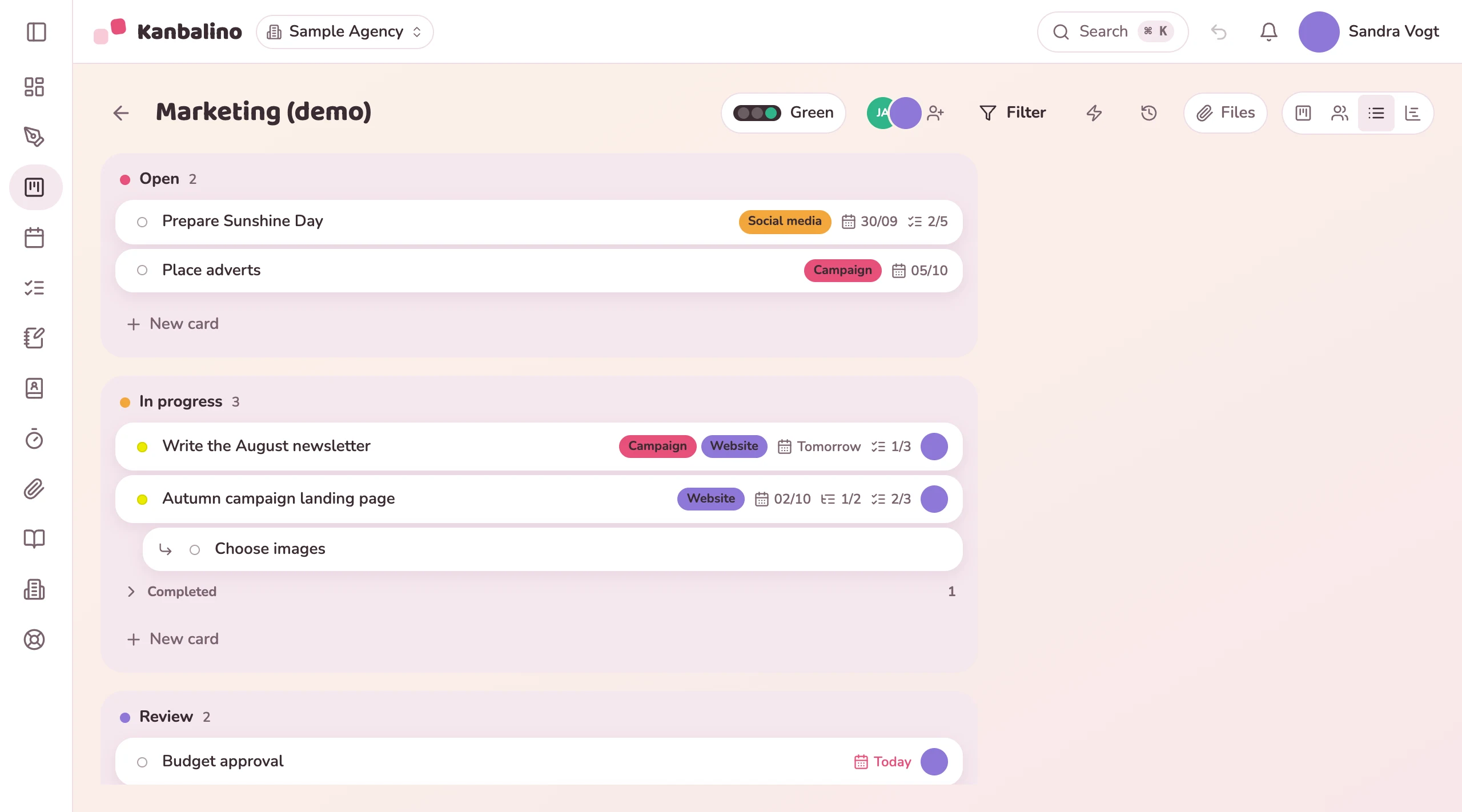
A board shows your tasks in columns, grouped by person, as a list or as a timeline. Calendar, My tasks, dashboard, time tracking and files come on top. All of them show the same data, and nothing is maintained twice.
As soon as a second tool for dates comes in, the two fall out of sync. The calendar says something different from the list, and nobody knows which one applies.
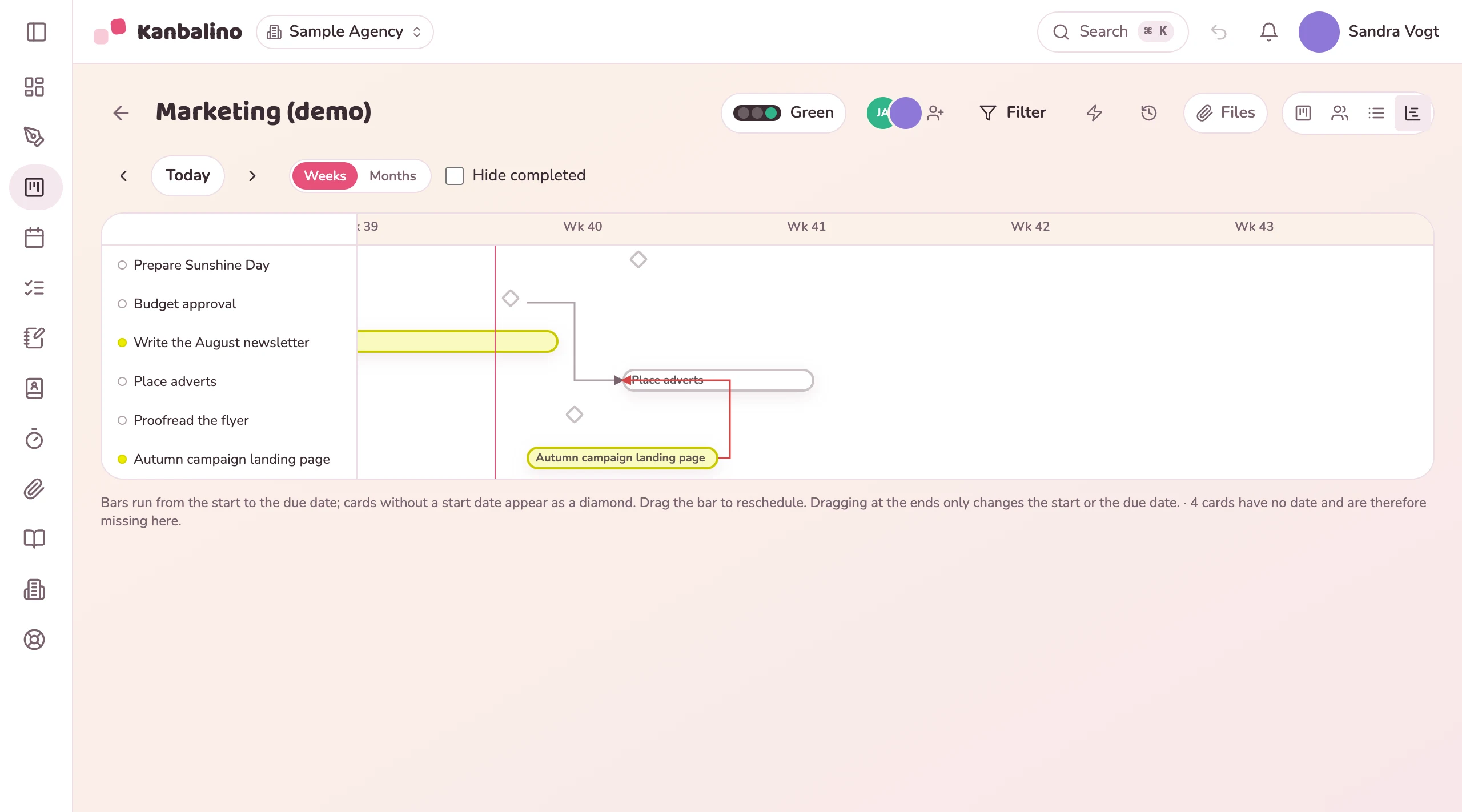
In Kanbalino the views are just different windows onto the same data. On a board you switch between columns, people, list and timeline with one click. The timeline (Gantt) shows periods as bars together with dependencies. If you drag a bar, the dates of the card change, and the new date appears in the calendar straight away as well. The dashboard shows the key figures, My tasks your personal task list across all boards.
At the top right of the board you switch the view with one click. The cards stay the same, and every change applies in all views.
A board appears as columns, grouped by person, as a list or as a timeline. Calendar, My tasks, dashboard, time tracking and files come on top. All of them show the same data, and nothing is maintained twice.
Yes. The timeline is a view on the board, next to columns, people and list. It shows tasks as bars from start to due date, with dependencies as connecting lines. If a waiting task starts before the end of its predecessor, the line turns red.
Yes. Dragging a card to another day moves the date. The calendar shows a day, a week, a month or three months, as you choose.
Yes. My tasks shows everything that is assigned to you, across all boards and workspaces, grouped by Overdue, Today, This week, Later and No date.
Four key figures (Open, Overdue, Due today, Done this week), the six most urgent tasks, the distribution of the open cards in the team and the last ten activities.
Yes. The “Boards” tab on the dashboard shows, for each board, the open and overdue cards, the progress and the next due date. Each board also has a traffic light. It sets itself: green if no card is overdue, amber as soon as one is overdue, red as soon as one has been overdue for more than 7 days. If you know better, you set the colour by hand and add a sentence on the status. Guests do not see the traffic light. With Premium, the tab creates a status report of all boards as a PDF.
Yes, with Premium or Campus as a group of boards, for example for all boards of one customer. Admins create the groups and assign the boards. The “Boards” tab then shows for each group the totals of open and overdue cards and the worst traffic light of its boards. Linked follow-up projects or a project map are not available.
Yes, with the free Time budget add-on. The “Capacity” tab shows, for each person, the allocated time of open cards over the next eight weeks, spread across the working days between start and due date. Once an admin enters the weekly hours, each week shows the share as a percentage. With Premium or Campus, everyone enters their own weekly hours themselves, otherwise an admin enters them. Admins see the whole team, everyone else sees only their own row.
The timeline shows all deadlines up to the key date, connected by lines. If a date moves, you see what depends on it.
View
“My tasks” gathers everything assigned to you, from your own workspace and from those of your clients.
View
The board for everyday work, the timeline for dates and connections. Scheduling conflicts appear in red.
View
Create an account, enter tasks with a date and switch between board, calendar and timeline. No credit card and no trial period that runs out.